Installing FreeBSD in OVH dedicated
French giant OVH is, at least at the moment of writing these lines, the largest dedicated server provider worldwide. So it only makes sense that we would like our system of choice to work out of the box with their dedicated server line, which got renamed along the way as "Bare Metal" to difference it, I assume, from their more recent offerings in the ehereal realm of the cloud.
Unfortunately, OVH does not provide an automated FreeBSD installation anymore as they used to , but nothing stops us from installing it ourselves as long as there is an option to use a console and a virtual CDROM drive. It just means we won't get any support from them regarding this setup, which is no big deal anyhow as they were never particularly enthusiastic about it in the first place.
As for us, it gives us a chance to get a bit more intimate with the legacy of the Berkeley Software Distribution. The first step in our journey is to visit the FreeBSD Project website and find out what's the flavour of the day: at the moment of writing this article, 14.4, and 15.0 were the only supported releases, but these instructions should work whenever you are reading this, for FreeBSD has the unique advantage over Linux of delivering a very consistent experience across versions. Feeling adventurous, I opt for 15.0 and scroll down the release announcement until I find a Download link.
https://download.freebsd.org/ftp/releases/ISO-IMAGES/15.0/
From all the files available here, I download the one named FreeBSD-12.3-RELEASE-amd64-disc1.iso, which is a CD image, and save it to my PC.
Booting the installation CD
Once logged into the OVH customer area, we shall open the Bare Metal menu and select the server where we want to perform the installation from the Dedicated Servers menu on the left side bar.
Once we are in the first tab of the server page, just make sure that:
- The boot option is set to hard disk (rather than the default rescue mode)
- The monitor option is set to Disabled. Otherwise OVH will interpret our server is faulty as we are carrying the installation and send an engineer to check, with the subsequent waste of time.
Time to proceed to the IPMI tab. Here you will find the KVM option. KVM stands for Keyboard Video Mouse, and allows us to interact with our server as if we were sitting in front of the machine rather than relying on a network connection. Press "Start a KVM session in the browser".
After some seconds a new button should become clickable, "Access a KVM session on your browser", after clicking on which we will find ourselves in front of a console screen (If a blank page appears, just enable popup windows in the browser and reload)
Now click the button in the top right, "Select Media", and find the FreeBSD iso we downloaded earlier in your PC. Finally, open the Power Options drop down menu and Reset the machine.
As the server boots (pay attention or you will miss it!) you will see a little, unconspicuous text message along the lines of Press Del to enter setup. Press the appropiate key. A BIOS screen will show and, using the arrow keys, we will navigate to a menu called Boot Options or something similar - it is usually the last menu in the row.
Inside this menu, we should find the usuall "Save changes" or "Discard changes" but also a list of drives on the system. One of them will be the Virtual CDROM. Use the arrow down key to move the cursor down there and press ENTER.
After a while, the machine should start booting. If everything is correct, we will see a kilobyte counter slowly increase in the top right corner of the page, which means the console is streaming the iso file from our PC. FreeBSD should boot and a a dialog will show up asking what we want to do with the CD. We will choose "Install".
Installation options
Many options in the Installer can be simply left as default or, if we know what they mean, changed to suit our personal preference, so I will not describe them. There are two exceptions that I will detail below.
Filesystem
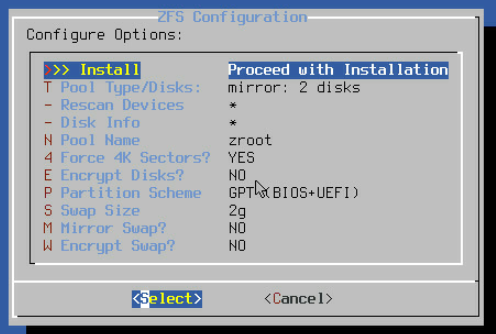
When prompted to choose a filesystem, we will select ZFS. In the ZFS Configuration screen that will follow, we use our arrow and enter keys to change the Pool/Type of Disks setting from stripe to mirror. I am assuming here that your setup is a typical one with two identical disks.
This creates a RAID type setup where both disks are mirrored, that is, one is a copy of the other. This means that if one of the disk breaks, you will not lose your data but you can continue working normally - eventually getting the faulty drive replaced by OVH support if you ask nicely OR have the foresight to reenable the Monitoring option once your OS is installed. This comes at the cost of half the capacity of your drive but believe me, it's worth it - unless you're in a business where storage space has priority over uptime of course.
Note: it's also advisable to choose GPT(UEFI) as partition scheme as otherwise the system could fail to boot in some BIOS models.
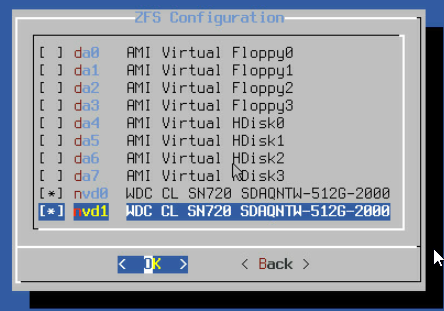
Once the mirror option is selected, press arrow up and then enter to Proceed with installation. You will now be prompted to choose the specific drives to use for our mirror. Usually these will be called nvd0 and nvd1. Use the space bar to select them and then move the cursor to the bottom and press enter to proceed.
Distribution
Under Distribution Select you may want to choose lib32 if you need compatibility with 32 bit software. The rest is usually not important if you don't know what it is.
Default services
When prompted to choose the default services to install, I recommend choosing local_unbound (caching DNS resolver - more on this later), sshd (the much necessary SSH daemon) and ntpdate (a service that checks and correct our server's date and time at boot).
Network
When asked if we want to set up IPv4 and IPv6 at this time, we will choose YES and then let it set up automatically. At the Name server screen type . in the Search field and then Proceed. If automatic network setup doesn't work for some reason, choose NO and follow the instructions below. If it does, just skip to the next section.
Manual network setup
Once the installation is finished, we are offered the option to make manual modifications in the shell before rebooting. Here's where we get the chance to set up the network manually. To this end, we will edit the following files. Replace with your actual interface name, which you can read with the ifconfig command. The primary and gateway IP can be found in the General tab of your server's control panel in OVH (Bare Metal Cloud > Dedicated Servers > this server).
/etc/rc.conf
ifconfig_="inet YOUR_IP netmask 255.255.255.255 broadcast YOUR_IP"
static_routes="gw1 gw2"
route_gw1="GATEWAY_IP/32 -iface "
route_gw2="default GATEWAY_IP"
/etc/resolv.conf
nameserver 213.186.33.99
nameserver 1.1.1.1
If you wonder what this IP address is, it's the OVH DNS server. And in case you wanted to be clever and use Cloudflare (1.1.1.1) or Google's (8.8.8.8) instead, you should be aware that OVH will route these addresses to their own DNS anyway.
Once this last change is saved and we've left the editor, type exit and enter to leave the shell and reboot.
Ready to rumble
Once the system is rebooted, all that's left to do is to allow the root user* to connect through SSH so we can continue our setup tasks in a more friendly environment such as Termius or Putty.
Edit /etc/ssh/sshd_config and find this line:
PermitRootLogin no
change it into
PermitRootLogin yes Save and exit the text editor and restart the ssh daemon for the changes to take effect:
service sshd restart (*) This is of course not a secure setup and should be just a temporary solution allowing us to do the rest of the setup in a more comfortable environment than the KVM console. Once you are finished here, I recommend to set up SSH key authentication using the tutorial I have prepared to this effect.